Files & assets
Every job's photos and documents, in one searchable place
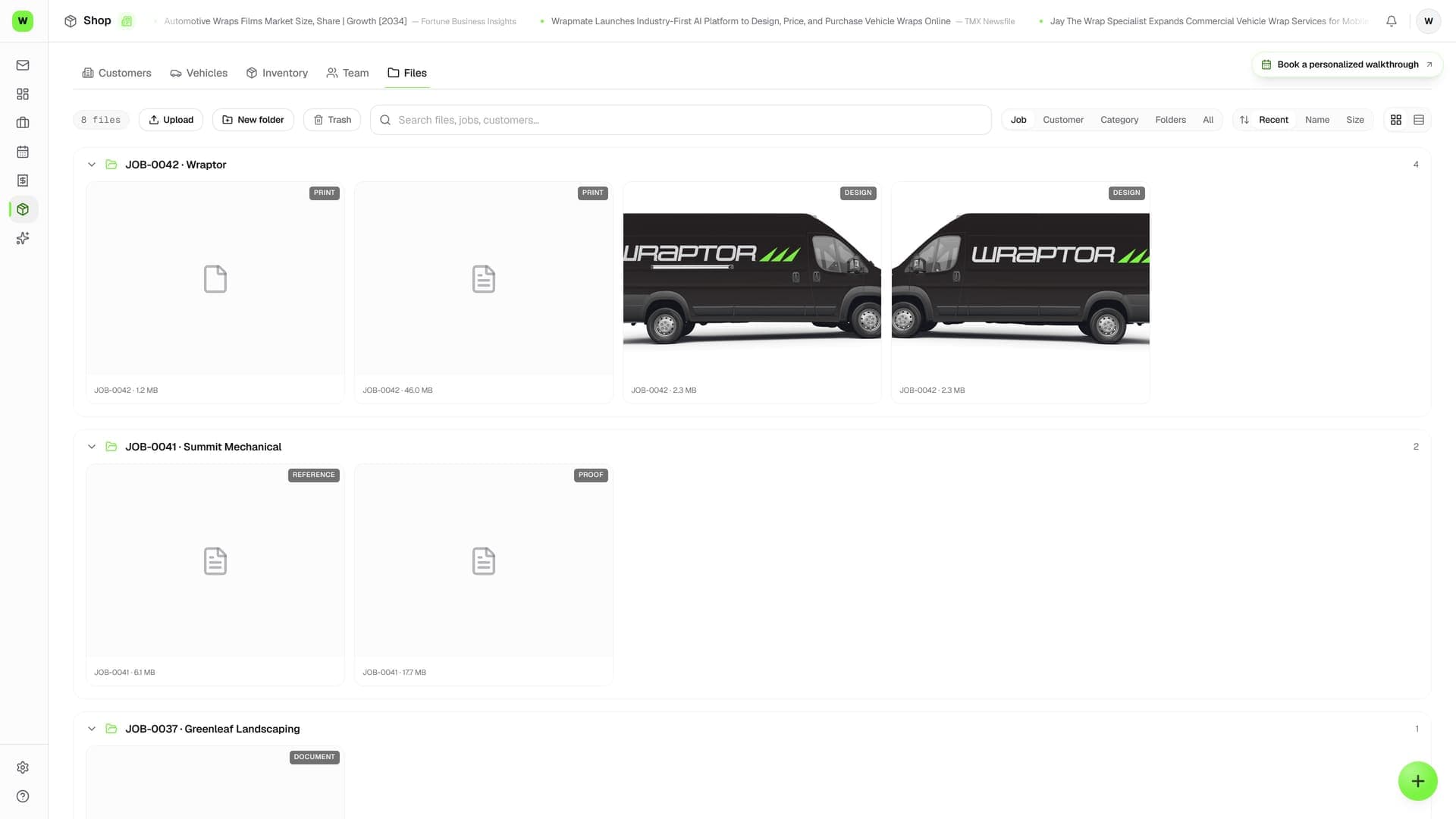
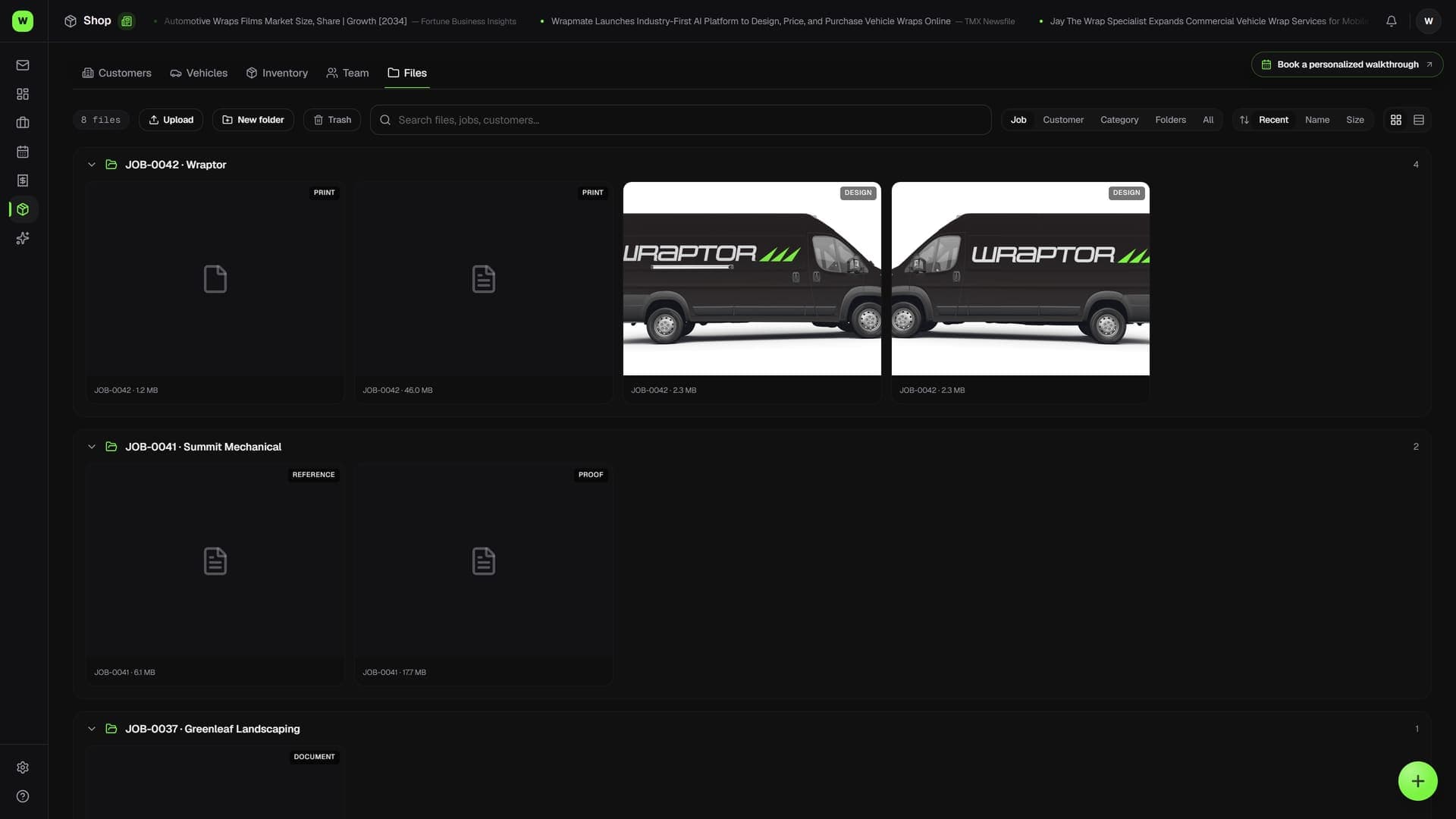
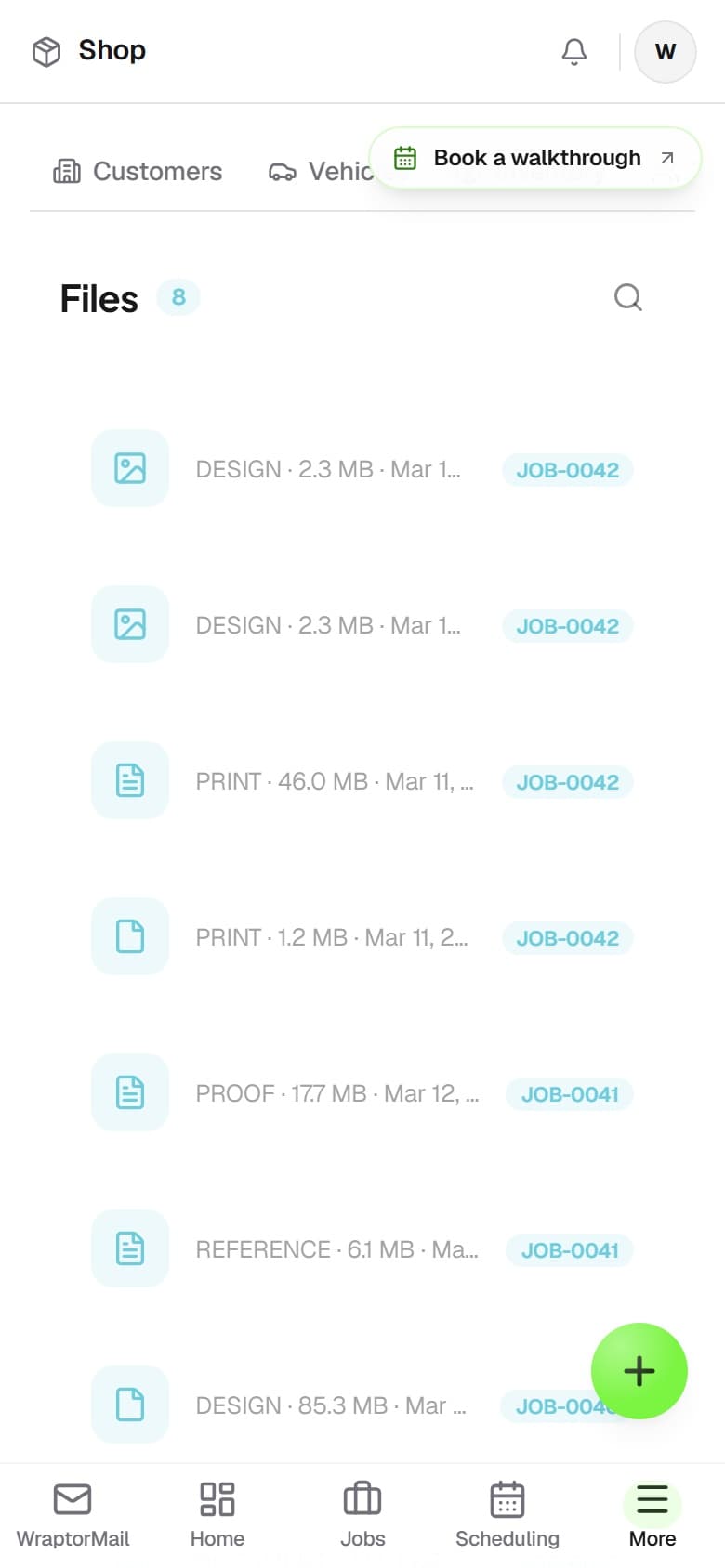
Your shop's shared filing cabinet, organized automatically by job. Upload artwork, references, and install photos to any job and tag them by type, then use the shop-wide Files browser to search across every file from every job and jump straight to the one you need.

The problem
The right file, buried in the wrong place
When artwork and photos scatter across phones and drives, finding the right one wastes real time.
Without Wraptor
- Artwork and photos scattered across phones, email, and drives
- Digging through each job one by one to find a PDF
- Install photos stuck on the installer's personal phone
- iPhone HEIC photos that won't open on a teammate's computer
- No fast way to find a document across every job at once
With Wraptor
- Every file attached to a job and organized automatically
- Tag files by type — Design, Proof, Install Photo, and more
- A shop-wide browser that lists every file, newest first
- Search by filename or job number and jump to the job
- iPhone HEIC photos converted to JPEG automatically on upload
How it works
From setup to done.
Add files to a job
Open the job and upload artwork, references, or documents in its file area, tagging each with a category like Design, Proof, Reference, or Other. Everything stays attached to the job it belongs to.
Capture photos from the floor
On mobile, snap install and completion photos straight onto the job. iPhone HEIC images are converted to standard JPEG automatically, so they open cleanly anywhere.
Find any file across the shop
Open the Files browser, type part of a filename or a job number, and see every matching file with its job and customer. Click a row to jump straight to that job and manage it.
Set the board thumbnail
The first image or PDF you add to a job becomes its cover on the Jobs board automatically. Upload your best shot first, or set a different file as the thumbnail any time.
Capabilities
Everything in the box.
Upload to any job
Add documents and photos to a job and tag each with a category — Design, Proof, Install Photo, Completion Photo, Reference, or Other. Files are organized by the job they belong to, not by a folder tree.
Shop-wide Files browser
A read-only browser that lists every file from every job, newest first, with an icon for its type, the filename, size, category, and the job and customer it belongs to. Each row links straight to its job.
Search by file or job
One search box matches by filename or by job number. Find the file, see which job and customer it belongs to, and jump there to manage it — your fastest path with no folders to dig through.
Auto cover thumbnails
The first image or PDF you add to a job automatically becomes that job's cover thumbnail on the board. Change it any time from the job's file area to show the image you want.
HEIC auto-conversion
Photos shot on an iPhone (HEIC/HEIF) are converted to standard JPEG automatically on upload, so they display and download cleanly on every device without anyone converting them by hand.
Secure, role-based storage
Everything is stored securely in the cloud and counts toward your plan's storage. The Files browser is controlled by the Files permission, which all four default roles include out of the box.
FAQ
Common questions.
How does file storage work in Wraptor?
Files works as two things together. On each job there's a file area where you upload artwork, references, and photos and tag them by type. The Files screen at /files is a read-only, shop-wide browser that lists every file from every job, newest first, with a search box. Files are organized by job, not by folders, and every file is attached to a job.
Can I search for a file across all jobs?
Yes. The Files browser lists every file from every job and has a single search box that matches by filename or by job number. Each result shows which job and customer the file belongs to, and clicking a row jumps you straight to that job, where you can actually manage the file.
Does Wraptor handle iPhone photos?
Yes. Images shot on an iPhone in HEIC or HEIF format are converted to standard JPEG automatically when you upload them, so they open and download cleanly on any device. This is especially handy for install and completion photos captured from the shop floor on mobile.
Can I store files that aren't attached to a job?
No. Every file lives on a job — there's no way to store a loose document, and there are no folders. If you need to keep a file, attach it to the relevant job. The Files screen is for finding files across jobs, not for holding ones that don't belong to any. Deleting a job also removes its files.
Find any file in seconds
Files is part of the standard Wraptor toolset — no separate purchase. Upload artwork and photos to your jobs and search across every file from one screen.
Try Wraptor